Smart access via QR or NFC
Real-time access control that works with your current hardware
The comparison
What you’re actually replacing
A shared code or a physical key can’t tell you who used it. That’s the gap QAccess closes.
Today
Physical keys & swipe cards
Get lost, get copied, and have to be physically collected back when a contractor’s job ends.
One shared keypad code
Everyone uses the same code, so there’s no way to tell who actually opened the door.
Re-coding after every change
Every time access needs to change, someone has to physically re-program the keypad or reissue cards.
With QAccess
One credential per person
Every contractor and staff member gets their own smartphone credential, with nothing physical to lose or copy.
Every entry logged
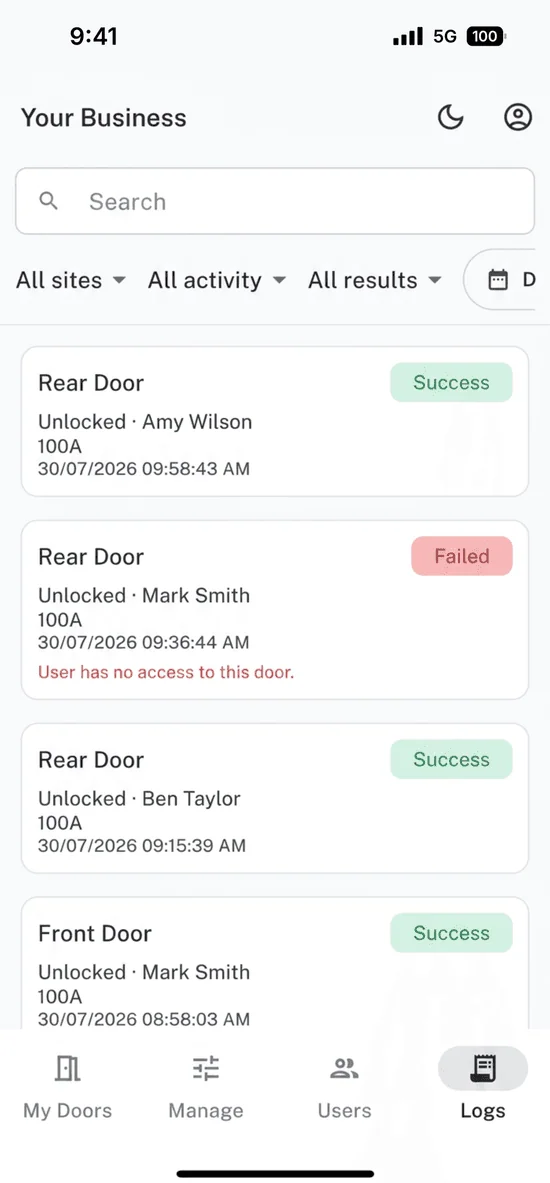
Each door activation is tied to a real person with a timestamp, fully exportable for a security review.
Revoke instantly, from anywhere
End a contractor’s access the moment the job’s done. No re-coding, no site visit, no waiting.
How QAccess works
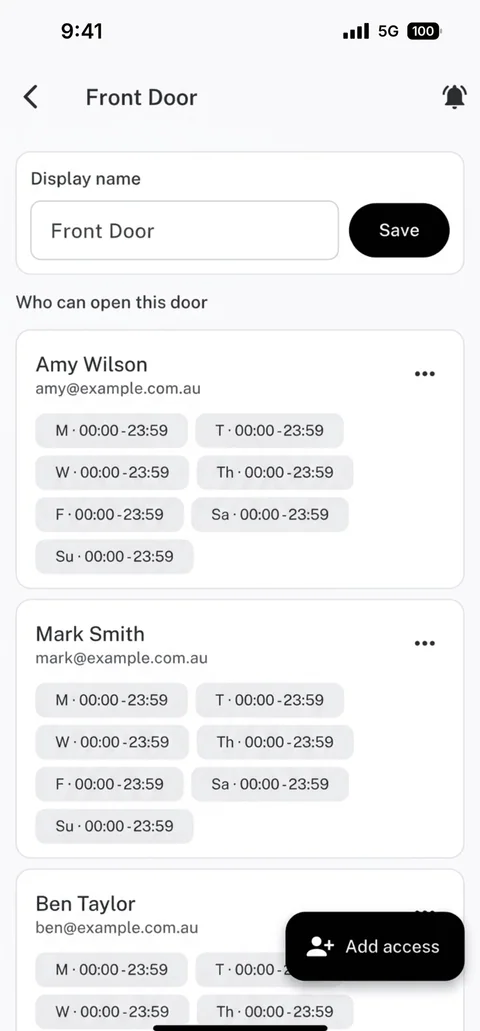
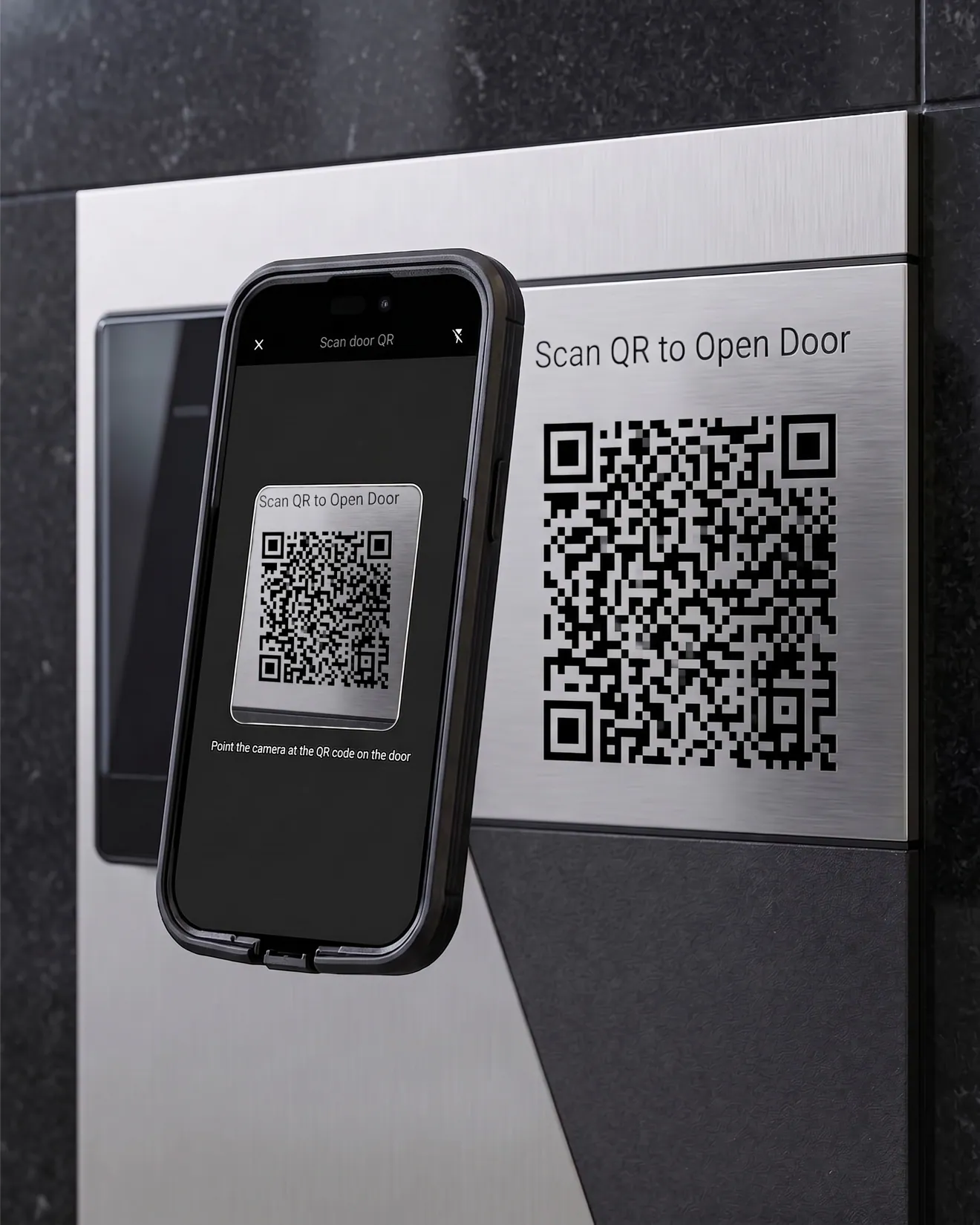
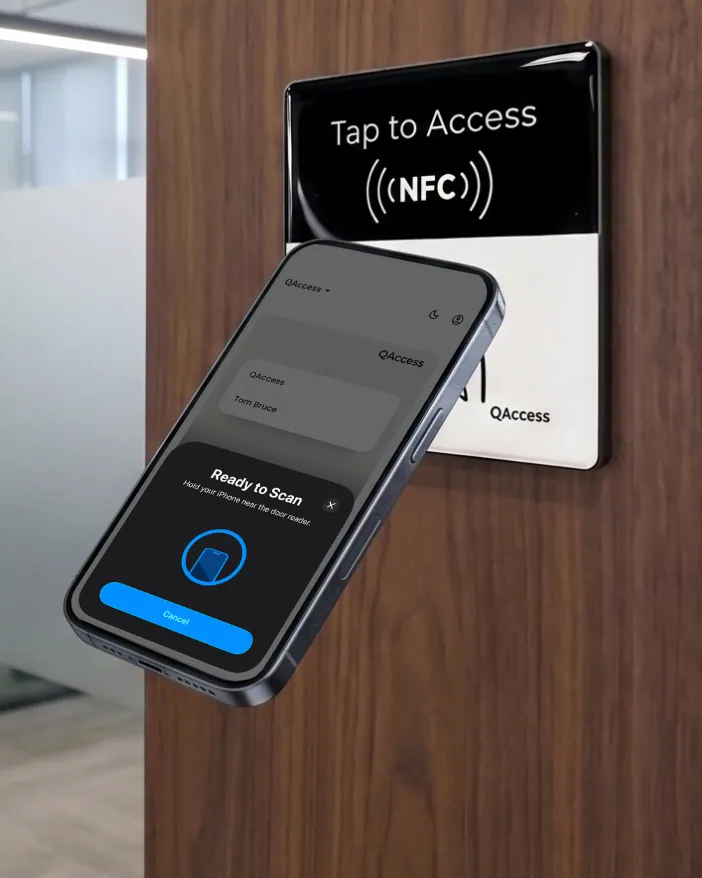
As easy as reaching for your phone
Scan a QR code or tap NFC and the door unlocks. The app only opens once you’ve confirmed it’s you, with a biometric scan, your passcode or an email code.
- No physical key or card to lose
- No shared code everyone has to remember
- Works with the phone already in your pocket
Cloud management
Manage permissions, revoke access, and monitor real-time traffic across your entire portfolio from a single, centralised dashboard.
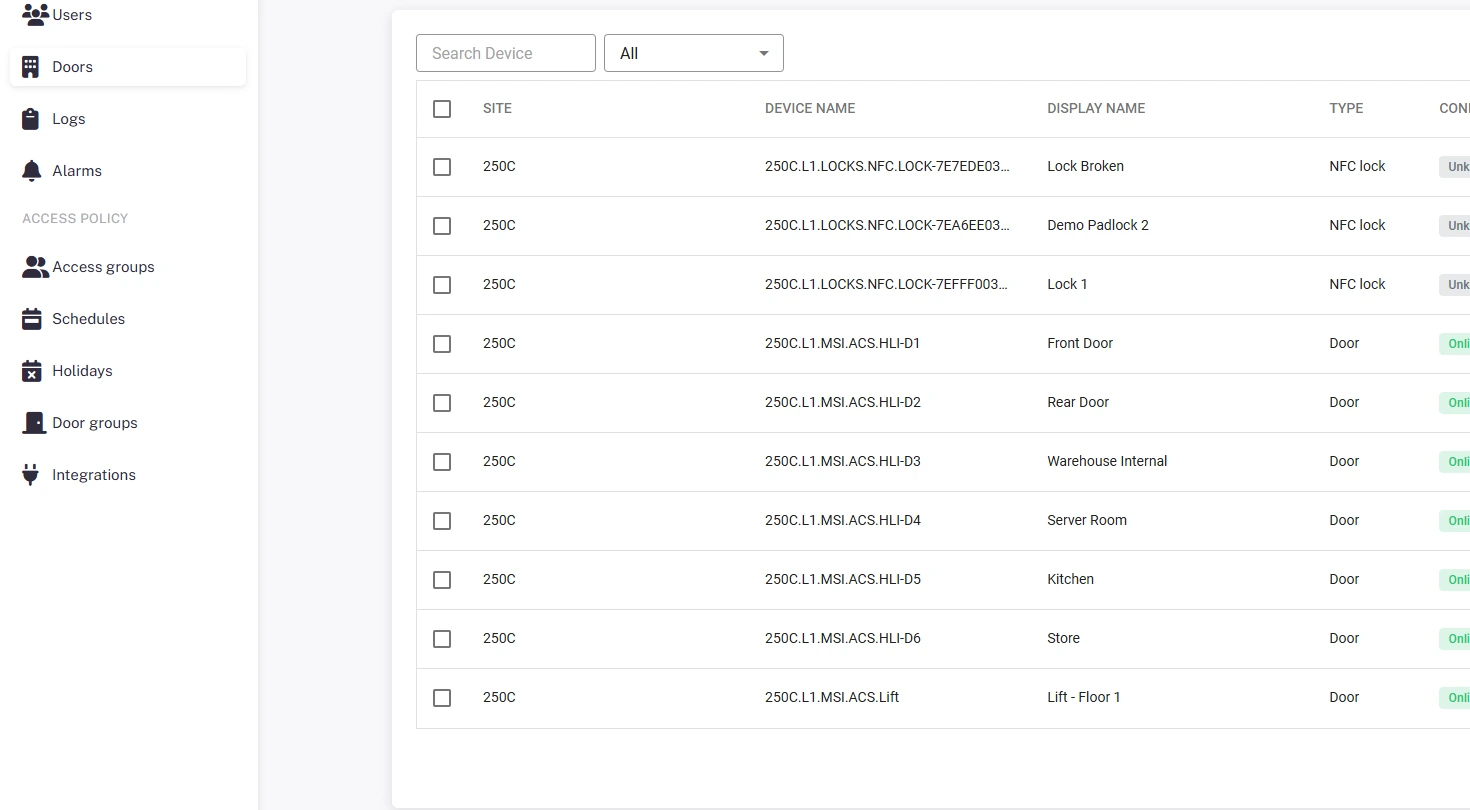
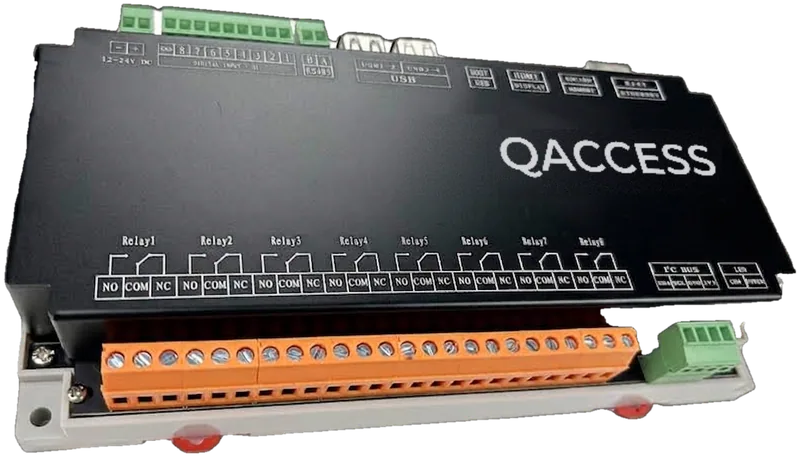 QAccess Controller
Centralised control
One login for every door, across every building.
Real-time updates
Grant or revoke a contractor instantly. No re-coding a keypad.
Remote unlock
Open a door from anywhere, right from the dashboard.
Complete visibility
Every activation logged and exportable for review.
See QAccess in action
Schedule a personalised demo with our team and discover how QAccess transforms building access management, from NFC tap-ins to real-time cloud dashboards.
Works with your existing door hardware. No commitment required.
FAQ
Frequently asked questions
Everything you need to know about QAccess. Can’t find your answer? Get in touch.
See all FAQsA shared keypad code or key card cannot tell you who actually used it. QAccess gives every contractor and staff member their own smartphone credential, so every entry is logged against a real person in real time, and you can see that record, or revoke their access, from the cloud portal instantly.
No. QAccess connects to the door controllers your building already has, modernising your access control by adding smartphone-based entry on top of your current system.
Pricing depends on the number of doors and entry points at your site, so there is no single public number. Book a demo or get in touch and we will put together a quote based on your building.
Yes. Book a short demo and we will walk through the contractor tap-in experience and the admin dashboard together.
Get started
Contact our team today to get your building up and running in a fraction of the time.